

According to the statistics, Facebook has over 3 billion monthly active users worldwide and remains the world’s most popular and widely used social media platform for staying in touch with friends across the globe, sharing life updates with friends, and joining communities and groups.
If you are new to Facebook or returning after a break, understanding how to log in securely across different devices is important. This guide explains:
- How to create a Facebook account
- How to log into Facebook on mobile and desktop
- What to do if you forget your password
- How to enable two-factor authentication (2FA) for better security
- Tips for keeping your account safe
Let’s begin! You can also check out our X login guide.

How to Create a New Facebook Account
Before you can log in, you must first create a Facebook account. For that, you need:
- A valid email address or mobile phone number
- Your date of birth
- A secure password
Follow these steps to create an account:
- Got to https://www.facebook.com/
- Click Create new account
- Enter your:
- First name
- Last name
- Date of birth
- Gender
- Enter your mobile number or email address
- Create a password
- Click Submit

Facebook will send a verification code to your email or phone number. Enter the code to confirm your account. Once verified, your account is ready to use.

Log Into Facebook on Mobile (iPhone & Android)
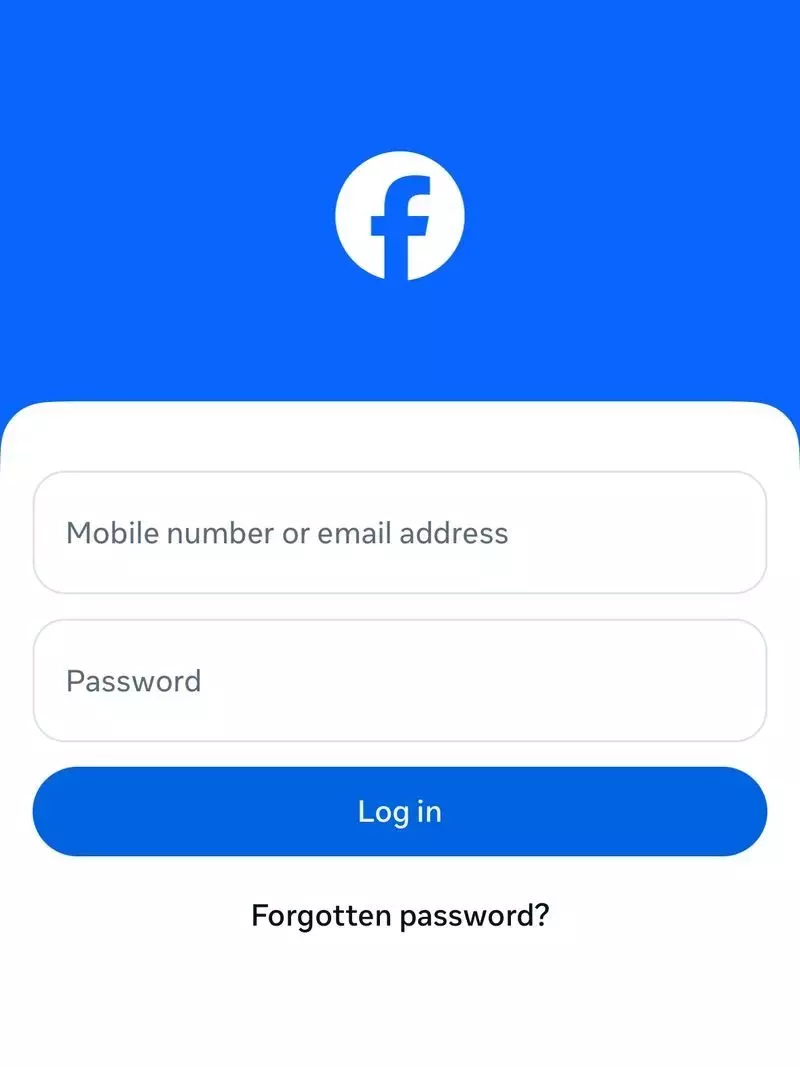
You can log in using either the Facebook app or a mobile web browser.
Option 1: Log In Using the App
- Download the Facebook app from the Apple App Store or the Google Play Store
- Open the app
- Enter your email address or phone number
- Enter the password
- Tap Log in
Option 2: Log In Using a Mobile Browser
- Open your browser
- Go to https://www.facebook.com/
- Enter your email or mobile number
- Enter your password
- Tap Log in

Facebook Desktop Login: Accessing via Computer
- Open your web browser
- Go to www.facebook.com
- Enter your email address or phone number
- Enter your password
- Click Log in

Log In Using Saved Accounts
If you have logged in to Facebook on the same device before, Facebook may display your profile. You can log in by simply clicking on your profile picture and entering your password.
This avoids having to type your email or phone number each time.
How to Recover Your Facebook Login Account and Password
If you can’t remember your password and you are unable to log in:
On mobile:
- Click Forgotten password?
- Enter your email address or phone number associated with the Facebook account
- Click Continue
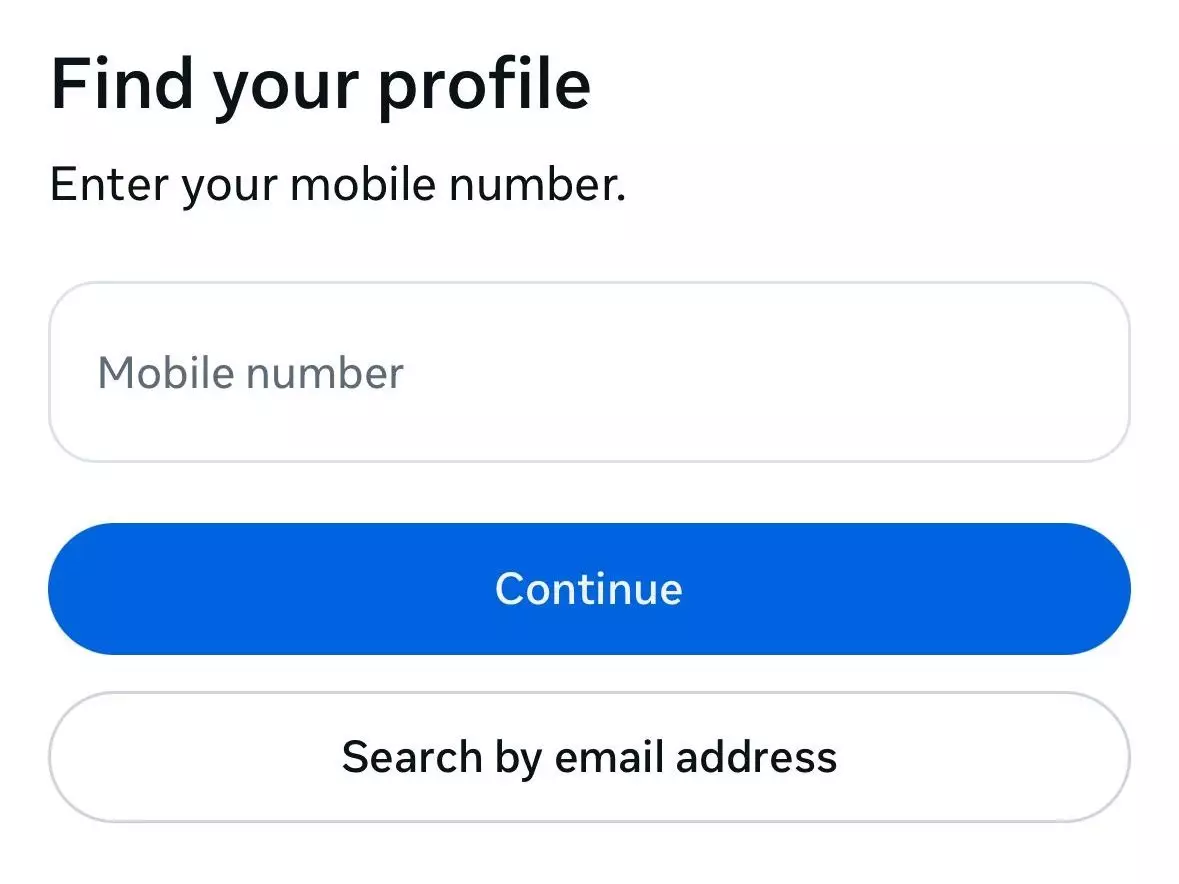
- You will receive a code confirm your account
- If you want to try another way to receive the code, click Try another way
- Enter the code to log in to your account
On desktop:
- Click Forgot password?
- Enter your mobile number or email
- Click Continue
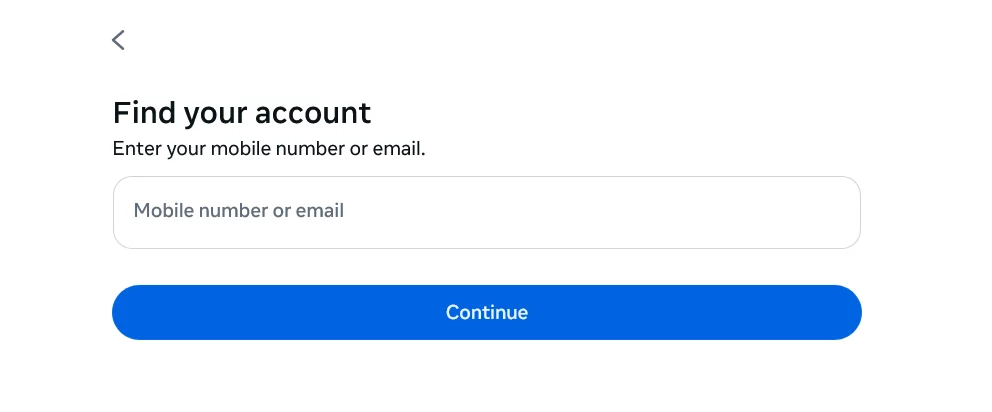
- Choose email or SMS to receive the code to confirm your account
- Once you receive the code, enter it to log in to your account

How to Enable Facebook Two-Factor Authentication (2FA)
Two-factor authentication adds an extra layer of security to your account and protects your account even if someone knows your password.
To enable two-factor authentication:
- Log in to Facebook
- Click on your profile picture (on desktop) or tap the menu icon on the mobile app
- Go to Settings and privacy
- Click Settings
- Go to Account center
- Under account settings, click Password and security
- Select Two-factor authentication
- Choose your Facebook account
- Enter the confirmation code that you will receive in your email for identification
- Choose one of the authentication methods from:
- Authentication app
- SMS or WhatsApp
- Security keys
- You will see the instructions for setup. Follow those instructions to set up the 2FA
Approve Logins from New Devices
When logging in from a new device or location, Facebook may send you a verification code or ask you to confirm the login. Check your email, SMS, or authentication app for the code and enter it to continue.
But only approve login requests that you recognize. If you receive a login verification code but did not attempt to log in, do not enter the code. Instead, change the password or review your recent login activity in Security and login settings.
This helps to keep your account protected from unauthorized access.
Tips to Stay Logged In Safely and Keep Your Account Secure
To stay logged in to your Facebook account safely:
- Stay logged in on your personal device for convenience, but only do this on devices you trust and only you use.
- Avoid staying logged in on public computers, shared devices, school or library systems, and internet cafes
- Always log out after using Facebook on a shared or temporary device.
To help protect your account:
- Use a strong, unique password
- Enable two-factor authentication
- Avoid logging in on public Wi-Fi networks
- Never share login or verification codes with a third-party
- Review login activity regularly in Security and login settings
You can reduce the risk of unauthorized access by following these safety measures and using Facebook safely across your devices.

Common Facebook Login Issues and Quick Fixes
You may experience a Facebook login issue for several reasons. The following are common issues and ways to fix them.
Forgotten Login Credentials
Forgetting your login credentials is a common issue that prevents you from logging into Facebook. If you can’t remember your email, phone number, or password:
- Click Forgot password?
- Search for your account using your email or phone number
- Follow the recovery steps to regain access
Account Restricted or Temporarily Locked
Sometimes, the Facebook team might restrict or temporarily lock your account due to suspicious activity. This is especially common when you buy Facebook accounts. The common reasons for this issue can be:
- Frequent logins from different locations or devices
- Unusual posting or messaging, such as sending too many messages or rapidly posting links
- Bot-like behavior, such as mass liking, rapidly adding more friends, or posting repetitive content
To fix this type of issue:
- Complete the security check that Facebook asks you to complete by verifying your phone number or submitting your ID.
- Some temporary locks or restrictions last for 24–48 hours. So wait and see if you gain access automatically.
- Try to avoid frequently changing the devices that you log into Facebook to reduce the risk of triggering security alerts on Facebook.
Browser or App Issues
Some login problems are caused by technical issues. Also, sometimes it can get stuck in a login loop by redirecting you back to the login screen after entering your credentials. As solutions:
- Clear your browser cache and cookies
- Try a different browser
- Disable browser extensions
- Update the Facebook app
Conclusion
Logging in to Facebook is a simple process, but understanding different login methods and security features is important for safe and uninterrupted access. In this guide, we learned how to create a Facebook account and log in using mobile devices, web browsers, or saved profiles. We also explored the steps you can take to regain access to your account when you cannot remember your password.
Key takeaways:
- You must create a Facebook account before logging in using an email address or phone number.
- You can log in through the Facebook app or web browser on both mobile and desktop devices.
- Saved login options allow you to access your account faster on trusted devices.
- If you forgot your password, you can recover access using email or SMS verification.
- Enabling two-factor authentication adds an extra layer of protection to your account against unauthorized access.
- Always review login attempts from new devices and approve only those attempts that you initiated.
- Avoid staying logged in on shared or public devices.
- Use a strong password and monitor login activities regularly.
- Common login issues, such as forgotten credentials, account restrictions, or browser errors, can be fixed with recovery or troubleshooting steps.
To add another layer of security and improve account protection, we discussed how you can enable two-factor authentication. Additionally, we covered best practices for staying logged in safely and protecting your account from unauthorized access. Finally, we looked into common login issues users frequently face, along with solutions.
By following the login methods, recovery options, and security measures we discussed in this article, you can access Facebook confidently while keeping your account protected across different devices.
Frequently Asked Questions
Why can’t I log in to my Facebook account?
There are several reasons for not being able to log in to Facebook. It can be incorrect email, phone number or password, forgotten login credentials, temporary account lock due to suspicious activity or a browser or app-related technical issues.
To fix this, double-check your login details. Also, you can click Forgot password? and reset your password. Additionally, try clearing your browser cache or update the Facebook app or complete any security checks requested by Facebook. If your account is temporarily locked, wait 24-48 hours or follow on-screen instructions to verify your identity.
How do I check my Facebook login history?
To view your login history, log in to Facebook and click on your profile picture (on desktop) or tap the menu icon on the mobile app. Then go to Settings & privacy, click Settings, and click Password and security. Under Security checks, open the Where you’re logged in section. Here, you can see the devices currently logged in, the date, and locations of the login sessions. If you notice an unfamiliar device, click Select devices to log out and log out from that device immediately.
How do I log in to a Facebook Business page?
To log in to your business page, you must first log in to your personal Facebook account that has admin access to the page. After logging in, click on your profile picture (on desktop) or tap the menu icon on the mobile app. You will see the pages to which you have admin access. Select the business page profile to switch to and manage the page.
How do I change my login email on Facebook?
To change the email address associated with your account, log in to Facebook and click on your profile picture (on desktop) or tap the menu icon on the mobile app. Then go to Settings & privacy, click Settings, and open the Account Center. Under Personal details, select Contact info and Click Add email address. Enter the new email address and confirm it. After adding the new email, remove the old email address if no longer needed.