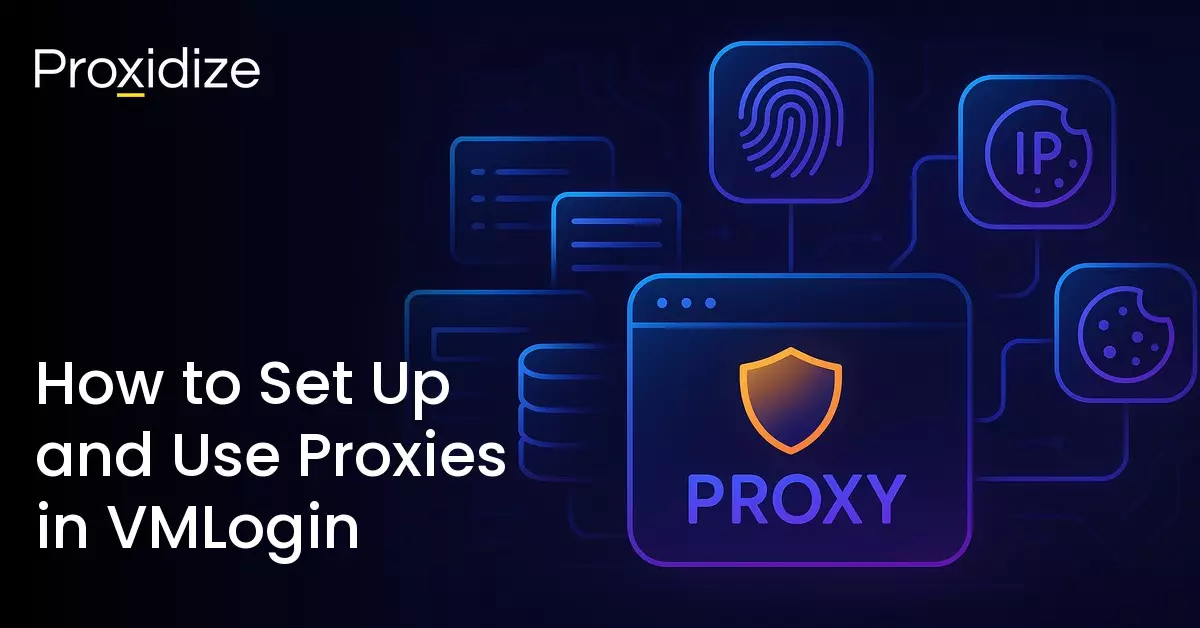

VMLogin gives each browser profile its own fingerprint, cookies, and session data. That is the whole point of an antidetect browser. However, without a proxy, every one of those profiles still shares your real IP address. The platform can tie them all together through the IP alone, and the fingerprint isolation you spent time setting up counts for nothing.
This article covers how to add proxies to VMLogin profiles, import them in bulk, align your fingerprint settings so they do not contradict your proxy, and manage the whole setup once it is running. We will also go through how to ensure nothing is leaking and what to do when things break.

What Is VMLogin?
VMLogin is a Chromium-based antidetect browser built for running multiple online accounts at once. Every profile you create gets its own browser instance, its own fingerprint, its own cookies and cache. As far as the website on the other end can tell, each profile is a different person on a different machine.
The typical use case is multi-account management on platforms like Amazon, eBay, Facebook, and Google Ads, where running more than one account from the same browser is a fast track to a ban. Some people also use it for web scraping and ad verification. VMLogin has features for sharing profiles between team members, batch-creating profiles, and automating workflows through Selenium WebDriver. We put together a ranking of the best antidetect browsers in 2026 if you want to see how it compares to ten other options.
Plans start at $99/month for 200 profiles on the Solo tier, and there is a three-day free trial with five profiles.
Supported Proxy Protocols and Formats
VMLogin supports HTTP, HTTPS, SOCKS4, SOCKS5, and IPv6. In practice, you will almost always be using HTTP or SOCKS5. SOCKS5 handles both TCP and UDP traffic, so it is the more flexible of the two. HTTP is fine for regular browsing and is what most providers hand you by default.
Two credential formats are accepted:
- IP:Port:Username:Password
- Username:Password@IP:Port
If your proxy uses IP whitelisting instead of username/password authentication, you just need the IP and port. Copy the credentials exactly as they appear in your provider’s dashboard. An extra space or missing character will cause the connection to fail. You would be surprised how often that turns out to be the problem when someone cannot figure out why their proxy will not connect.


How to Add a Proxy to a VMLogin Profile
This is a step-by-step process walking you through account creation all the way through to proxy implementation.
- Open VMLogin and click New Browser Profile in the left sidebar.
- Name the profile something descriptive. If you are managing multiple accounts on Amazon, for example, “Amazon-Seller-US-01” will save you a lot of confusion once you have 40 profiles in your list. “Profile 1” will not.
- Click Setting Proxy Server within the profile creation screen.
- Toggle Enable Proxy Server to on.
- Select the proxy type from the dropdown. Check your provider’s documentation for whether to use HTTP, HTTPS, or SOCKS5. When SOCKS5 is available, it is usually the better pick.
- Enter your proxy credentials. You can fill in the IP address, port, username, and password fields individually, or use the Paste Proxy Information button to auto-fill all four fields from your clipboard. The pasted string needs to follow one of the two formats covered above.
- Click Test Proxy. VMLogin will try to connect through the proxy and, if it works, show you the proxy’s IP address, geographic location, and timezone. If the test fails, double-check that the protocol matches what your provider specifies and that the credentials are right.
- Click Save Profile.
When you launch this profile, all traffic from that browser window routes through the proxy IP instead of your real one.
The proxy type to use depends on what you are doing with the profile. Ad accounts on Facebook or Google call for mobile proxies. Mobile carrier IPs are shared among thousands of real users through CGNAT, and platforms will not block them because they would be cutting off legitimate customers in the process. Seller accounts on Amazon or eBay are a different story.
For those, you would want residential proxies with a static IP that matches the account’s billing region. Web scraping is different again, as rotating residential or mobile proxies work best because they spread requests across many IPs and keep any single address from getting rate-limited. We get into proxy selection for scraping in more detail in our guide to the best proxies for web scraping.
One rule applies across all of these: one proxy per profile. Two profiles sharing an IP can be linked by the platform, and that kills the isolation.

Importing Proxies in Bulk
Entering credentials one at a time stops making sense once you are past a dozen profiles. VMLogin gives you two ways to import proxies in bulk.
TXT File Import
Put together a text file with one proxy per line, formatted like this:
ProxyType:IP:Port:Username:PasswordFor example:
SOCKS5:192.168.1.1:5500:myuser:mypass

HTTP:10.0.0.1:8080:user2:pass2Proxy type, IP, and port are required. Username and password are optional if your proxy uses IP whitelisting instead.
To import: select the profiles you want to assign proxies to on the main screen, right-click, and choose Batch Import Proxy to the Selected Profile. Pick your text file and VMLogin distributes the proxies across the selected profiles in order.
Excel File Import
VMLogin can also import proxies through an Excel file. This method is more useful when you need to bring in cookies and proxy settings together. Select your profiles, right-click, choose Export Selected Cookie to Excel to get a template. The exported file has columns for proxy type, IP, port, username, password, and cookie data. Fill in the proxy columns, save, then click Batch Import Cookie in the upper right corner of the client. VMLogin asks if you want to import proxy settings along with the cookies. Hit Yes to update both.
Either way, test every profile once you are done importing. One formatting mistake in a single line can silently break that entry, and finding out about a dead proxy after you have already put the profile to work is not a fun experience.
VMLogin also lets you batch export proxies from existing profiles. Select the profiles, right-click, and choose Batch Export Proxy of Selected Profiles. This is helpful for backups or handing off a set of configured profiles to someone on your team.
If your proxies rotate IPs on a timer, our article on IP rotation explains how rotation works and what intervals make sense for different workloads.

Matching Your Fingerprint Settings to Your Proxy
Getting the proxy connected is the easy part. What actually gets people caught is everything around it. Your browser broadcasts dozens of data points, and if any of them contradict the IP your proxy is providing, the platform will notice. A proxy that places you in Tokyo paired with a browser timezone that still reads Berlin? That is a dead giveaway.
Timezone: VMLogin auto-detects the timezone from the proxy’s geolocation when you run the proxy test. Verify that it matches the country and city your proxy IP resolves to. A proxy in Sao Paulo should show America/Sao_Paulo, not whatever timezone your local machine is set to. You can correct it manually if the auto-detected value looks wrong, but do not touch it unless it is clearly off.
Language: Match the browser language to the proxy’s location. A Brazilian IP paired with an English-only Accept-Language header is exactly the kind of inconsistency that platforms flag. For proxies in multilingual countries, go with the dominant language of the region the IP is in.
WebRTC: This one catches more people than anything else on this list. WebRTC is the browser protocol behind video calls and voice chat, but it has a dangerous side effect: it can expose your real IP address right through your proxy. If you have ever had an account get banned and could not figure out why, there is a decent chance it was a WebRTC leak you never checked for.
VMLogin has four WebRTC modes:
- Real: Your actual IP is visible to websites. Do not use this with proxies.
- Replacement: WebRTC requests show the proxy IP instead of your real one. The recommended default. Make sure both the Public IP and LAN IP options are turned on, or it will not mask correctly.
- Disable A: Blocks IP detection through WebRTC but keeps the protocol functional for things like Google Voice and custom fonts.
- Disable B: Kills the WebRTC plugin entirely. VMLogin recommends this specifically for eBay and Etsy, where both platforms are known to probe WebRTC data hard.
Replacement works for most profiles. For e-commerce platforms that are aggressive about WebRTC probing, Disable B is the safer bet. Our guide on browser fingerprinting goes deeper into what data points platforms collect and how they use them.
Geolocation: You can set custom latitude and longitude coordinates in VMLogin, or let it pull them from the proxy IP. If a website asks for your location through the browser’s geolocation API, it gets whatever coordinates you have configured here. Make sure they line up with where the proxy says you are.
Operating system: Use a fingerprint that matches the device you are actually on. If you are on Windows, pick a Windows fingerprint. Font rendering and GPU signatures behave differently across operating systems. Claiming to be on macOS while your machine is producing Windows rendering data is the kind of discrepancy that detection systems catch.

Managing Proxies Across Profiles
Setting up profiles is a one-time task. Keeping them running without something breaking is the ongoing part, and it gets messy fast once you are past 30 or 40 profiles without any kind of system.
Swapping proxies:When a proxy dies or you need a fresh IP, you can swap the proxy on a profile without rebuilding anything. Open the profile settings, replace the credentials in the proxy section, run the test, save. Fingerprint, cookies, session data, all of it carries over.
Keeping things organized: Name every profile with the platform, account purpose, and proxy region. “eBay-UK-Seller-02” beats “Profile 17” by a wide margin when you are scrolling through a long list. VMLogin lets you add notes to profiles too, which is useful for tracking things like proxy expiration dates or which provider each profile is using.
Sharing profiles across a team: VMLogin supports sub-accounts on every plan: 5 on Solo, 10 on Team, 20 on Scale. You can transfer profiles between team members with the full configuration intact, proxy and fingerprint included. This makes it practical to have one person create and warm up accounts and hand them off to someone else for daily use.
Knowing when to use sticky versus rotating proxies: Profiles that stay logged in (social media, ad accounts) need a sticky proxy that keeps the same IP between sessions. If the IP changes mid-session, that is a red flag for most platforms, and it can trigger a security review. Scraping is the opposite situation. There you want a rotating proxy that cycles through IPs so no single address gets flagged. Ask yourself whether the task needs a persistent identity or just raw request volume, and pick accordingly.

Verifying Your Proxy Setup
Do not not skip this part. Before you put any profile to work, take two minutes and verify that the proxy is doing what it is supposed to and nothing is leaking.
- Step 1: Launch the profile from the main VMLogin screen.
- Step 2: Open whoer.net. The IP shown should be the proxy IP from your provider’s dashboard, not your real one. Check the country and city too.
- Step 3: Head to browserleaks.com and find the WebRTC section. If WebRTC is set to Replacement, the proxy IP should appear here. If you are using Disable A or B, no IP should show up at all. Your real IP appearing in this section is a problem. Go back and fix the WebRTC mode.
- Step 4: Stay on browserleaks.com and look at the DNS section. You want to see DNS servers that correspond to the proxy’s location or a DNS provider you have configured (like Cloudflare). Your ISP’s DNS servers showing up here means the proxy is not routing DNS queries correctly.
- Step 5: Go to iphey.com and run a full fingerprint check. Iphey looks at your whole fingerprint and flags anything inconsistent: timezone versus IP location, language versus geolocation, WebRTC leaks. A clean result means the profile is good to go. For more on what fingerprint testing tools actually check, our article on Pixelscan walks through the process.
Do this for every new profile you set up. It is two minutes of your time. Losing an account because of a WebRTC leak can render all your hard work null.

Common Errors and How to Fix Them
When something goes wrong with a proxy in VMLogin, it is usually one of these.
The proxy test fails: Check the obvious stuff first. Is the protocol in the dropdown (HTTP, SOCKS5, etc.) the same one your provider says to use? Are there extra spaces or line breaks in the credentials? Has the proxy expired or been deactivated in your provider’s dashboard? If you used the paste button, try entering the fields manually. Sometimes the clipboard data includes invisible characters that break the parser.
The profile opens but pages will not load: The proxy test might have passed, but the IP itself could be blocked by the target site. Try a different proxy. If the test starts failing too, the proxy is probably down on the provider’s end and there is nothing to fix on your side.
WebRTC is leaking your real IP: Usually this means the WebRTC mode is still on Real, or Replacement is on but the Public IP and LAN IP sub-options are not both enabled. It can also happen when a browser extension loaded into the profile interferes with VMLogin’s WebRTC handling. Fix the mode, make sure both sub-options are on, remove any suspect extensions, and re-test on browserleaks.com. If your real IP still appears after all that, try Disable B.
Geolocation does not match the proxy: VMLogin fills in geolocation data from the proxy test, but only if you run the test. Skip it or let it fail, and the geolocation fields might still show a previous proxy or your actual location. Run the test again.
Everything is slow: Mobile and residential proxies route through real consumer networks. They will always be slower than datacenter proxies. That is the tradeoff for higher trust scores. If it is notably worse than what you would expect, try a proxy server that is closer to either your location or the target site. Reducing the number of simultaneously running profiles can help too if you are bumping against bandwidth limits.
Bulk import is not working: Every line in the text file needs to follow the exact same format: ProxyType:IP:Port:Username:Password. Blank lines, mixed formats, or header rows will cause the parser to choke. After importing, test each profile to make sure the proxy actually got assigned.
Conclusion
The fingerprint side and the IP side are two halves of the same setup in VMLogin. Mess up either one and the whole profile is compromised.
Key takeaways:
- One proxy per profile. Two profiles on the same IP can be linked by the platform, and the whole isolation model breaks down from there.
- Timezone, language, geolocation, and WebRTC all need to line up with your proxy’s IP. One mismatch is enough to flag a profile.
- Replacement is the right WebRTC mode for most situations. For eBay, Etsy, and platforms that probe WebRTC aggressively, switch to Disable B.
- Test every profile before using it for real. Two minutes on whoer.net and browserleaks.com can save you from a ban you would never see coming.
- Your proxy type should match what you are doing. Mobile for ad accounts and social media, static residential for e-commerce, rotating for scraping.
All of that goes out the window if the proxy itself is bad, though. A blacklisted IP or a datacenter range that the platform already knows about will get your profile flagged regardless of how much time you spent on the fingerprint. You cannot configure your way out of a bad IP.
Frequently Asked Questions
Does VMLogin come with built-in proxies?
No. You have to bring your own. VMLogin is a browser, not a proxy service. It works with HTTP, HTTPS, SOCKS4, SOCKS5, and IPv6, so whatever provider you are using should be compatible.
Can I use free proxies with VMLogin?
You can, but you probably should not. Free proxies tend to be slow, unreliable, and shared with a lot of other people. The IPs are often already blacklisted on major platforms. If the accounts you are managing are worth anything to you, a paid proxy costs less than replacing a banned account.
How many profiles can I run at the same time?
That comes down to your hardware more than VMLogin. Every open profile is basically another Chrome window eating CPU and RAM. With 16GB of RAM, somewhere around 10 to 15 profiles running at once is realistic, though it depends on what each profile is doing. A profile sitting idle uses a lot less than one running a scraping script. Worth noting: the profile limits on your plan (200 on Solo, 500 on Team, 3,000 on Scale) refer to how many you can create, not how many you can have open at the same time.
Does VMLogin work on macOS?
Windows only. There is no macOS or Linux version. If you are on a Mac, your options are running VMLogin inside a virtual machine or connecting to a Windows machine through remote desktop.